
b.lan — Momentary Remote Desktop from a Browser for Home Servers that Refuse to Install a Desktop Environment
In the last few weeks I've been going back and forth between the terminal and the browser quite often to take care of the home server. Sometimes you need to open the router admin page, sometimes you need to test the website display from the client side, or just download a file with Chrome that has been logged in to a certain account. Every time you have to SSH with port forwarding, or copy a link to a local browser, it feels really complicated for a 5 second job.
The thought of installing a Desktop Environment (DE) arose. But DEs like Not to mention they pull in the dependencies of dozens of packages, display managers, compositors — which in fact will continue to run 24/7 even if they are not used.
That's why I made b.lan: an on-demand remote desktop that only runs when in use, turns off automatically when idle, and only has a total of 50 MB of RAM when idle.
Why not just install DE?
This is a question that often arises every time I talk about this setup. The answer is simple: resource. This HP 14s server only has 8 GB RAM and a mediocre processor. Nginx, PHP-FPM, MySQL, and several other services already eat 1-2 GB. Adding DE means adding 300 MB–2 GB which continues even though no one is logged in.
What I need is not a 24/7 desktop. What I need is: the ability to "borrow" the screen for a moment when needed, then return it when finished. It's like renting a computer, not buying it.
| Components | RAM | Continues? |
|---|---|---|
| Full DE (XFCE) | ~300 MB | Yes |
| Full DE (GNOME/KDE) | ~1–2 GB | Yes |
| b.lan (idle) | ~50 MB | No — turns off when idle |
| Chrome (1 tab) | ~200 MB | Only when used |
Here comes b.lan
b.lan (b.lan — yes, just 4 letters) is a browser-based remote desktop that can be accessed from any device on the local network. Just open https://b.lan in a browser, click "Start Session", and in a few seconds you have a virtual desktop complete with Chrome, file manager, and terminal.
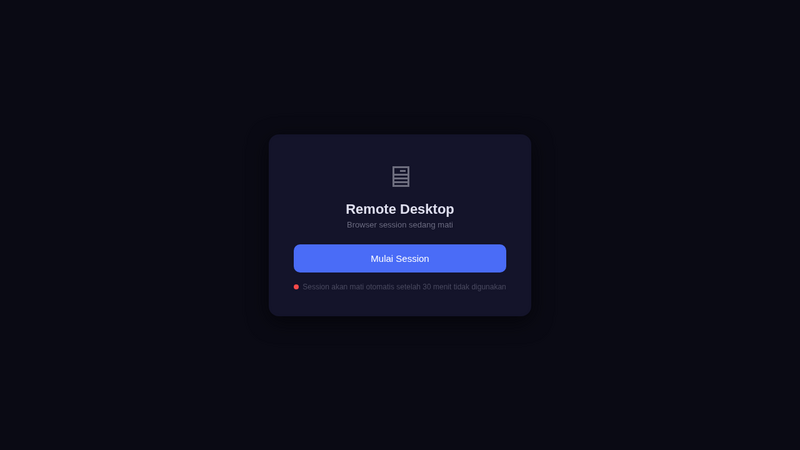 Initial view — remote desktop ready to start with one click
When the session is running, the display changes to a simple toolbar with an iframe that connects directly to the virtual desktop via noVNC. From here you can:
- Browse using Chrome that is logged in with your accounts
- Browse the server files using Thunar File Manager (Ctrl+Alt+F)
- Access the terminal directly using xfce4-terminal (Ctrl+Alt+T)
- Open a new Chrome (Ctrl+Alt+C)
- Stop the session at any time with the Stop button
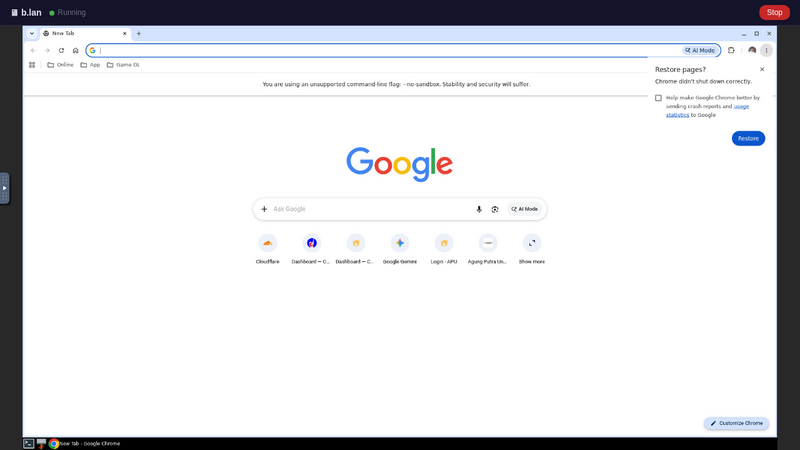 Session is running — minimal toolbar on top, virtual desktop inside iframe
What You Can Do on Virtual Desktop
1. Chrome Browser
Chrome Stable 149 runs on virtual display. The profile is separate from my local Chrome — so you can log in with certain accounts specifically for server purposes (testing websites, accessing routers, downloading files).
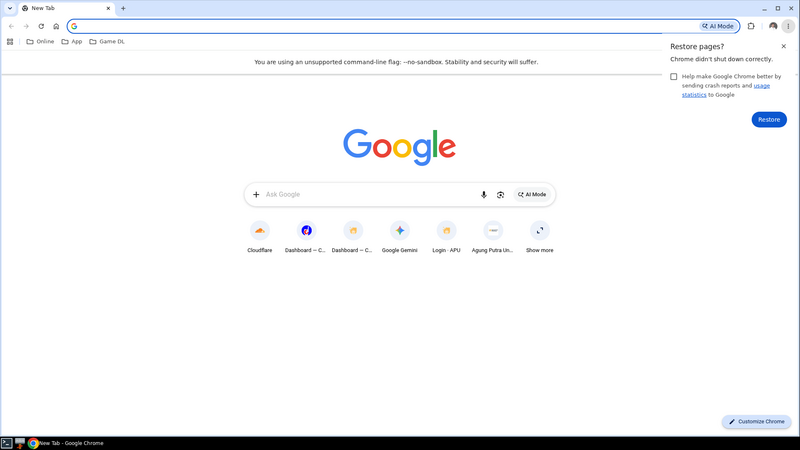 Chrome runs on Xvfb display :99 — looks like a regular desktop but is just virtual
2. File Explorer — Thunar
This is the feature I use most often. With Thunar, I can navigate server files using the GUI — copy-paste files, open directories, view image thumbnails. Much faster than ls repeatedly in the terminal when exploring an unfamiliar folder.
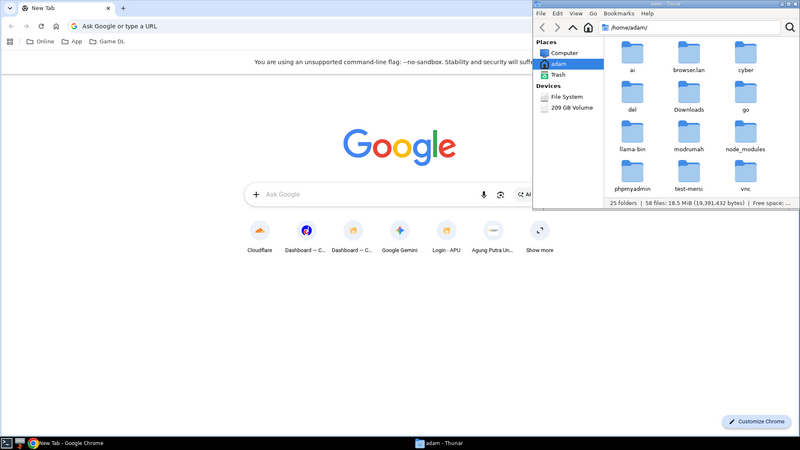 Thunar File Manager — browsing server files is better than ls many times
3. Terminal — xfce4-terminal
Yes, in the virtual desktop which contains Chrome and a file manager, there is a terminal too. Multitasking just got better: terminal in one window, browser in another window, on the same screen.
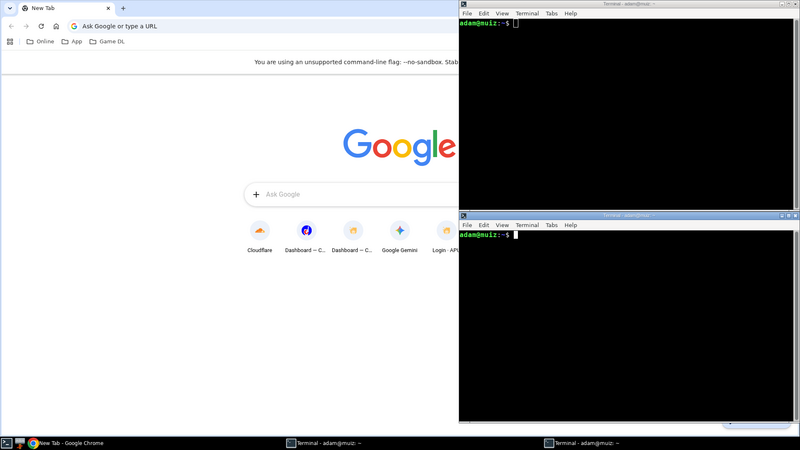 Terminal next to the browser — work becomes more flexible
Technical Architecture
Behind its simple appearance, b.lan uses a light but powerful stack:
The data flow is like this:
Browser (client)
    ↓ HTTPS
Nginx (b.lan:443)
    ↓ proxy
noVNC / websockify (:6080)
    ↓ WebSocket
x11vnc (:5900)
    ↓
Xvfb (:99)
    ↓
openbox + tint2 + Chrome + Thunar + Terminal
Open the b.lan page → Nginx serve index.html → JavaScript check status → if it is dead, display the start button → click start, trigger systemctl start browser-session.service →
Life Cycle Management
The feature I like the most: idle auto-stop. Every time a VNC client connects, the timestamp file is updated. If the timer is not reset (because the client is disconnected) for 30 minutes, systemd will immediately turn off the service. Clean, no hanging processes.
| Endpoint | Function |
|---|---|
/ | Home page — offline page or iframe noVNC |
/start | Start session (trigger systemctl start) |
/stop | Terminate session |
/status | Check status (running/stopped + idle seconds) |
/heartbeat | Update activity timestamp (so it doesn't stop) |
Open Source on GitHub
I uploaded all the scripts to GitHub so anyone can use or modify them: github.com/adammuizweb/browser.
There is install.sh which just runs sudo — it will install all dependencies, setup systemd service, deploy Nginx config, and prepare the web UI. Suitable for Debian/Ubuntu and derivatives.
# Cara instalasi (sebagai root)
sudo bash install.sh

# Atau kustom domain
DOMAIN=browser.lan sudo bash install.sh
After installation, just set DNS (dnsmasq or /etc/hosts) and access from the browser. HTTPS with self-signed cert via mkcert is recommended so you don't get a mixed content warning when noVNC is connected.
Conclusion
b.lan is not a replacement for SSH or a terminal — it is a complement for situations where CLI is lacking. Sometimes you really need a GUI, but that doesn't mean you have to install a heavyweight DE that runs 24/7.
The principle: services that are not used should not use resources. b.lan on when needed, off when finished. Simple, light, effective.
If you have a home server at home and often feel "if only there was a desktop for a moment", try deploying b.lan. Or if you find an idea, I'll always wait for the pull request in the repo.