
o.lan — Libre Office in Browser, On-Demand, No Desktop Environment
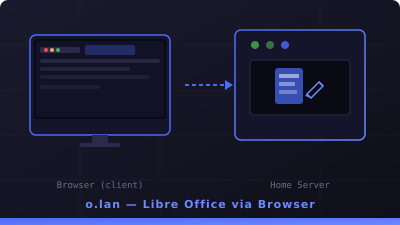
In the previous article I talked about b.lan — a remote desktop for Chrome that can be accessed from the browser. Well, this time it's still in the same realm, but with a different use case: o.lan, a special remote desktop for Libre Office.
Why are you separated? Instead of just installing Libre Office on b.lan? Yes, you can. But if combined, the browser session and office session become the same display. Complicated. If you're writing a document, suddenly you have to check something in Chrome, it crashes. Not to mention resource problems — Chrome loves memory, Libre Office is also not bad. It's better to separate them, each has its own display, its own port, and can be started/stopped independently.
Just like b.lan, o.lan carries the on-demand philosophy: the service is completely off when not in use, only on when you need it. There's no desktop environment, no display manager, no compositor. Just Xvfb + x11vnc + websockify + Openbox. The difference is, Chrome has been replaced by Libre Office.
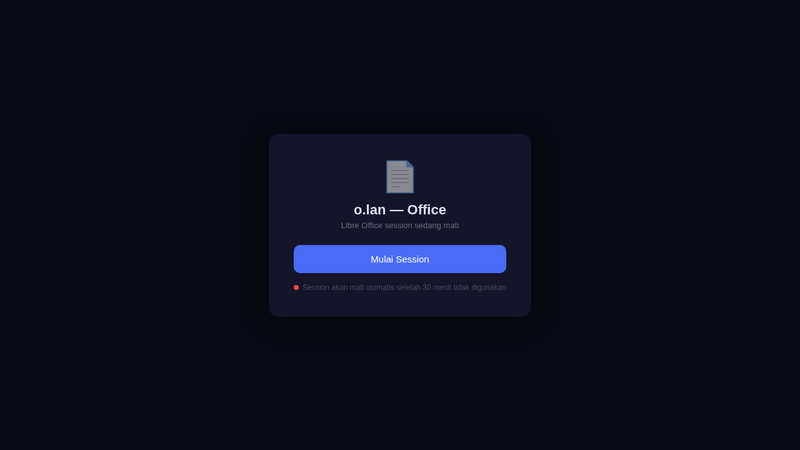
o.lan start page — session is dead, just click "Start Session"
Architecture
Technically, the architecture of o.lan is almost identical to b.lan:
Browser (client)
    ↓ HTTPS
Nginx (o.lan:443)
    ↓
noVNC / websockify (:6081)
    ↓ WebSocket → VNC
x11vnc (:5901)
    ↓
Xvfb (:98, 1920×1080)
    ↓
openbox + tint2 + Libre Office
The main difference is in the port and display:
| Components | b.lan | o.lan |
|---|---|---|
| Display | :99 | :98 |
| VNC port | 5900 | 5901 |
| noVNC port | 6080 | 6081 |
| Main applications | Google Chrome | Libre Office |
| Use case | Browsing, research, admin panel | Writing documents, spreadsheets, presentations |
With different ports, both sessions can run together. Want to do research on b.lan while writing reports on o.lan? Can. Each in a different browser tab, so they don't interfere with each other.
Usage Flow
First, open https://o.lan in a browser. The start page will display offline status with a "Start Session" button:
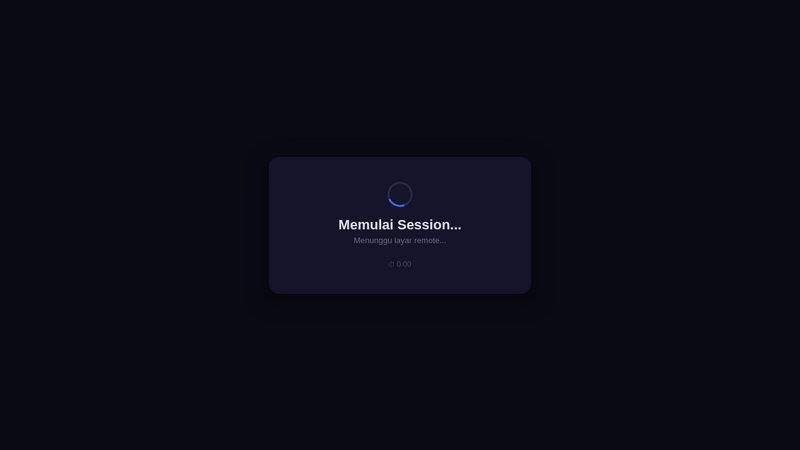
When the session is starting, a progress indicator appears
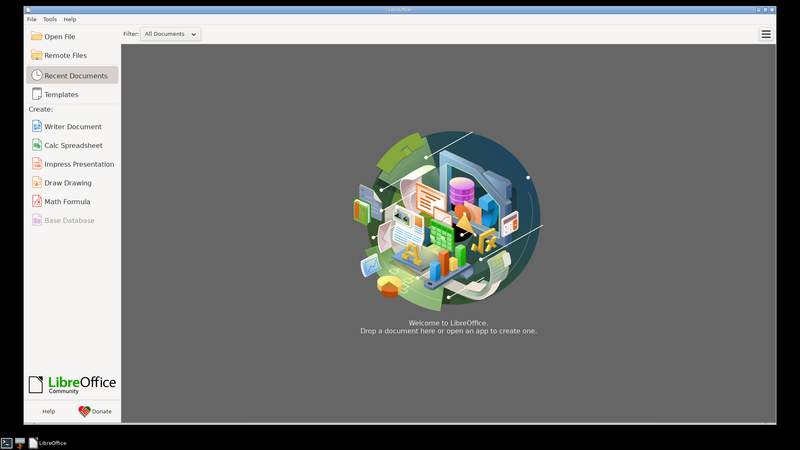
After clicking, the system will run the systemd service office-session.service which automatically turns on Xvfb, x11vnc, websockify, Openbox, and Libre Office. The process takes about 5-10 seconds. Once ready, you will see the Libre Office Start Center directly in your browser:
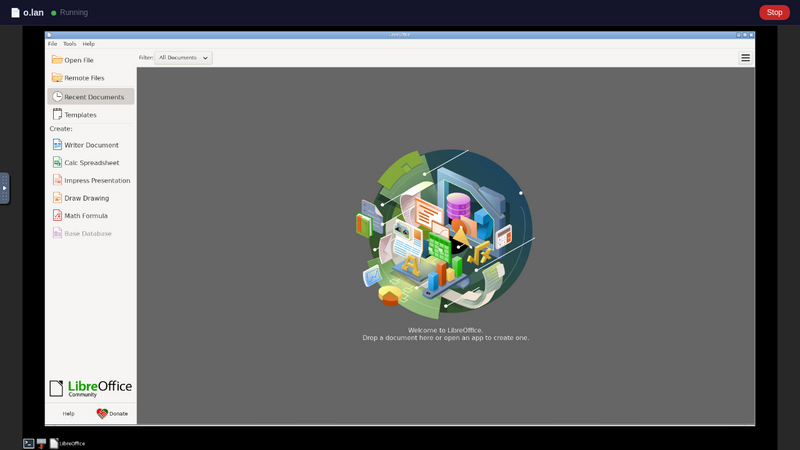
Libre Office Start Center — select Writer, Calc, or Impress
From here you can choose the application you want to use: Writer for text documents, Calc for spreadsheets, or Impress for presentations. Everything runs on the server, the display is sent via VNC to your browser.
Libre Office Writer — looks exactly like the native desktop
You can also open files that already exist on the server via Thunar (file manager), or copy and paste text from other sources. Since this is a full session, all keyboard shortcuts work normally. There is also a special shortcut:
- Ctrl+Alt+W — Open Writer
- Ctrl+Alt+C — Open Calc
- Ctrl+Alt+I — Open Impress
- Ctrl+Alt+T — Open terminal
- Ctrl+Alt+F — Open file manager (Thunar)
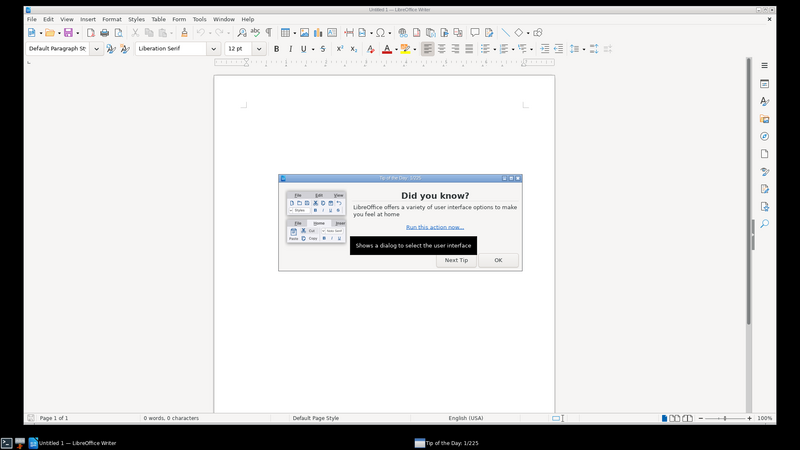
Typing Writer documents — responsive, no different from desktop
Idle Auto-Stop
This is my favorite feature. If you forget to close the session, o.lan will automatically shut down after 30 minutes of no activity. The timer is visible at the bottom of the screen — so you know when the session will end.
There are two layers to how it works:
- System-level: A systemd timer (runs every 1 minute) checks whether there is a TCP connection to the VNC port. If no client connects for 30 minutes, the service will immediately stop.
- App-level: JavaScript on a web page sends a heartbeat every time you click or press a button in the VNC area. If the heartbeat stops, the timer in the UI runs out, and the session is terminated.
The result: zero resource waste. When I used it, the service was full. When it was closed, everything was cleaned. RAM is relieved again.
Installation
For those who are curious and have their own home server, installation is really easy. Just clone the repo then run script:
git clone https://github.com/adammuizweb/office.git
cd office
sudo bash install.sh
Or if you want a custom domain:
DOMAIN=o.lan sudo bash install.shThis script will take care of all dependencies: Xvfb, x11vnc, websockify, noVNC, Openbox, tint2, Libre Office, Nginx config, systemd service, and idle timer. Just run it, wait a few minutes, you're done.
Technical details and full code are on GitHub: github.com/adammuizweb/office
Conclusion
o.lan is proof that you don't need a bulky desktop environment just to run one application. With Xvfb + VNC + Openbox + Libre Office, you get a fully functional office experience without having to install DE, display manager, or compositor. Everything runs on the server, accessed from any device browser on the local network.
The combination of b.lan + o.lan on the home server becomes a complete remote workstation: Chrome for browsing and admin, Libre Office for writing and processing data. Both are on-demand, independent of each other, and don't waste resources.
Next? Maybe a session on GIMP or VS Code. But that's another story.